
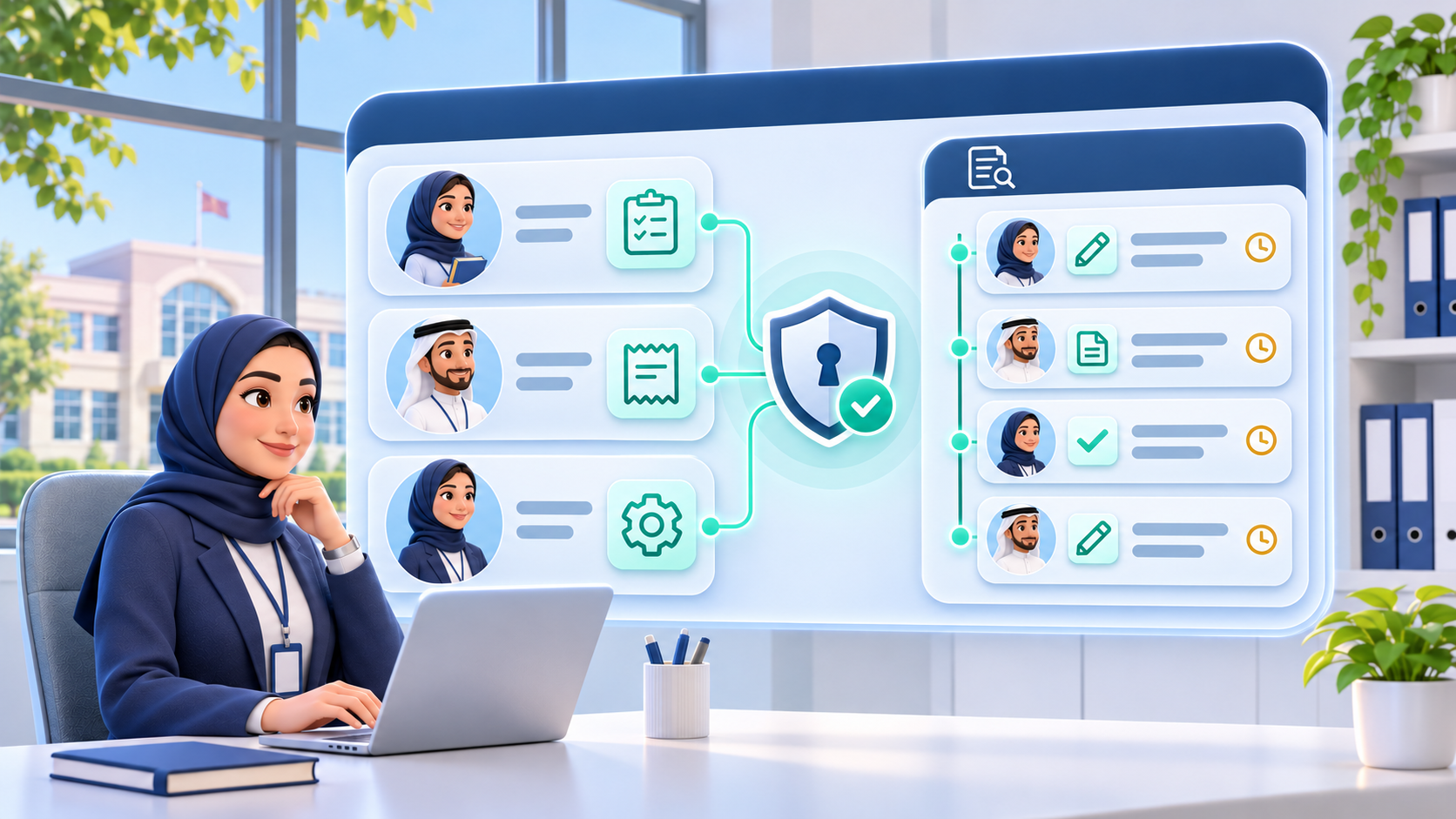
School operations involve administrators, accountants, student affairs teams, and teachers. Each team needs access to information and tools that match its responsibilities.
When everyone works within one platform, important questions arise: Who can edit a student record? Who can record a payment or approve a discount? How can the school review an action taken by mistake?
Staff permissions and audit logs in a school management system help address these questions. Permissions define what a user can do, while audit logs support the review of recorded actions. What Is the Difference Between Permissions and Audit Logs? Permissions control the actions available to a user, such as viewing, creating, editing, or approving records.
An audit log records the activities supported by the system. Depending on its capabilities, it may show the user responsible, the time of the action, the affected record, and details of the change.
For example, an accountant might be allowed to record a payment, while a discount requires approval from another authorized employee. If the transaction changes, the audit log may help reviewers establish what happened.
Together, these functions support clearer responsibilities within a school management system.
- Assign Access According to Responsibilities Start by identifying the tasks each role performs, then assign the access required to complete them.
The following is an illustrative structure: Role Examples of appropriate access Student affairs Register students and update authorized profile details Accounting Record payments and review fees and balances Teacher Record attendance for assigned classes Authorized manager Approve discounts or review reports according to policy System administrator Manage accounts and permissions within delegated authority
Roles will vary between schools. Access should reflect actual responsibilities and be reviewed when an employee changes roles or leaves. 2. Separate Viewing, Editing, and Approval An employee may need to view information without being able to change it. Another may need to submit a request that requires separate approval.
For financial workflows, recording a payment, requesting a discount, approving it, and reviewing reports can involve different responsibilities where the system supports this level of control.
This helps organize school fee management and makes the transaction process clearer. 3. Give Each Employee an Individual Account Shared accounts make it harder to identify who performed an action. A log may show the account used without establishing which employee used it at that time.
Individual accounts make it easier to assign permissions, review activity, and remove access when required.
Review accounts periodically, particularly after staff transfers or departures. 4. Connect Actions to the Correct Student and Transaction A useful review must establish which record or transaction was affected.
The student ID identifies the owner of the record, while the employee account identifies the user who performed the action. These are separate references serving different purposes.
Our article on student IDs and QR codes in school management systems explains how unique student identifiers help distinguish records and simplify access to the correct account. 5. Keep Financial Corrections Traceable A payment may be entered incorrectly, assigned to the wrong student, or require cancellation under school procedures.
When reviewing a correction, staff may need to establish:
- What was the original transaction?
- What correction was made?
- Who made it, and when?
- Was a reason recorded?
- Did the action require approval? Check which details the system actually captures, whether log entries can be changed or deleted, and who has that authority.
This matters when tracking school installments and overdue payments, because changes to payments or due dates can affect balances and overdue reports. 6. Test Permissions Using Everyday Scenarios Use practical tasks to check whether access settings match school policy:
- A student affairs employee attempts to change a fee.
- A teacher attempts to access financial information outside their role.
- An accountant records a payment and requests a correction.
- A manager reviews a change to a student transaction.
- An administrator removes access for a former employee. These tests also show whether the audit log provides enough information for the school’s review process.
- Review Access as Responsibilities Change Staff duties evolve throughout the year. Review permissions at the start of the academic year, when responsibilities change, and when employment ends.
Also define who reviews sensitive actions, which situations require follow-up, and how corrections are documented.
Audit logs provide information; clear review responsibilities help the school use that information effectively. Clearer Responsibilities and Easier Reviews Appropriate permissions give employees the tools they need, while audit logs help schools review actions and investigate mistakes.
Before adopting an access structure, test it against real workflows and make sure employees understand their responsibilities.
Book a school management system demo to discuss your school’s requirements and explore the available permission and activity-tracking options.